You can use erxes Knowledge Base in the following ways:
- As an erxes messenger add-on (see erxes chat "FAQ" section)
- As an embedded widget
- As a client portal (Coming Soon)
How is the knowledgebase structured?
The word knowledgebase refers to the main object. Please note that you can create only one knowledgebase for one brand. If you wish to create multiple knowledgebases, please purchase an additional Brand as an add-on.
Here is an example of a possible knowledgebase structure:

How to create a knowledgebase?
Knowledge Base is a part of your widget section where you address common concerns, questions, or objections that customers have.
Please follow the next steps for setup: Knowledge Base -> Add Knowledge Base.
- Click Add button
- Insert Title for knowledge base
- Insert description
- Choose a brand to link.
- Choose a custom color.
- Choose language
- Click Save
How to add a category to a knowledgebase?
Please follow the next steps for setup: Knowledge Base-> Add Knowledge Base -> Add Category.
- Add Category to the created Knowledge base.
- Insert Name for the category
- Insert description
- Choose icon
- Click Save
How to add articles in a category?
Please follow the next steps for setup: Knowledge Base-> Add Knowledge Base->Add Category-> Add Article.
- Give the article a title
- Add a summary of the content
- Add your content
- Select Status
- Click Save
You may add articles in each category. You can use the Knowledgebase script to install it on your webpage or inside the messenger, or both.
Campaign
Start converting your prospects into potential customers through Email, SMS, Messenger or more interactions to drive them to a successful close.
- Please follow the steps for setup: Engage
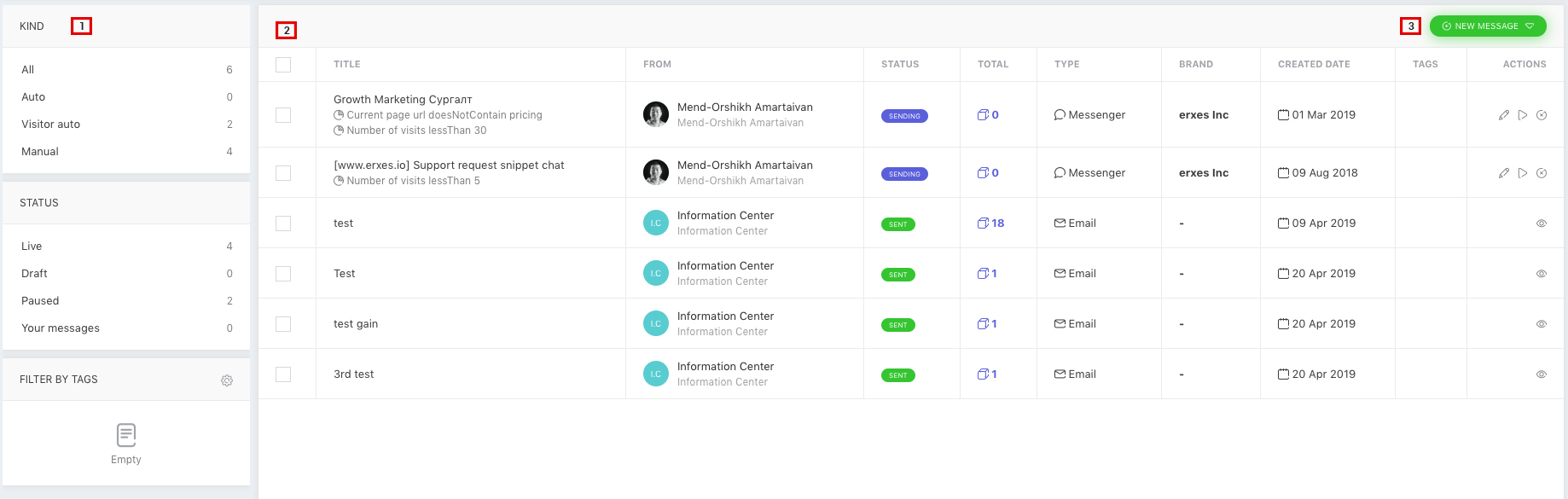
- Filter by Kind, Status, Tags
- List of Created Engage
- Click New Message
- Please follow the steps for setup: Engage->New Message
The Engage feature consists of three types of messages:
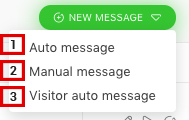
- Auto message
- Manual message
- Visitor auto message
Auto message
Send mass emails to your target customers automatically at scheduled time. The chosen segments for the customers will be updated automatically. You may pause your emails at any time.
- Please follow the steps for setup: Engage->New Message-> Choose Channel

- Insert Title for Auto Message
- Choose Channel
- Click Next
- Please follow the steps for setup: Engage->New Message-> Choose Channel->
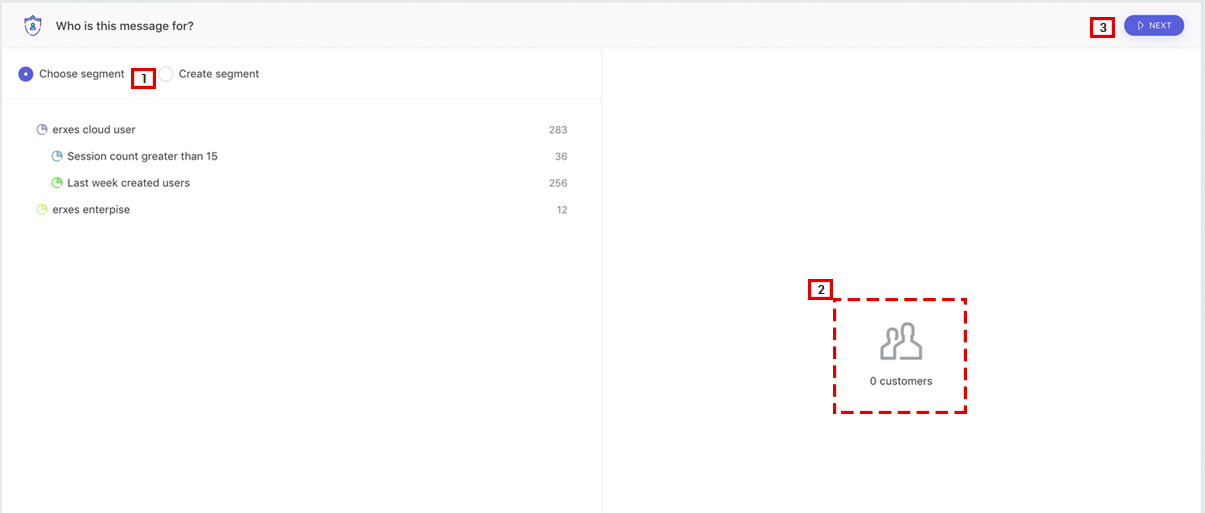
- Choose Segment/Create Segment
- Number of customers
- Click Next
- Please follow the steps for setup: Engage->New Message-> Choose Channel-> Compose your message

- Type your message
- Choose team member to send from
- Insert email subject
- Choose email template
- Attach files
- Set your schedule
- Set your month
- Set your day
- Set time
- Appearance of message
- Click Save to send
- Please follow the steps for setup: Engage

- Pause/Send message automatically at any time
Manual Message
Main function of Manual message is to send mass emails only once
- Please follow the steps for setup: Engage->New Message->Manual message->Choose Channel
- Insert Title for Manual Message
- Choose Channel
- Click Next
- Please follow the steps for setup: Engage->New Message->Manual message->Choose Channel->Choose Segment
- Choose Segment
- Numbers of customer to receive manual message
- Click Next
- Please follow the steps for setup: Engage->New Message->Manual message->Choose Channel->Choose Segment->Compose message
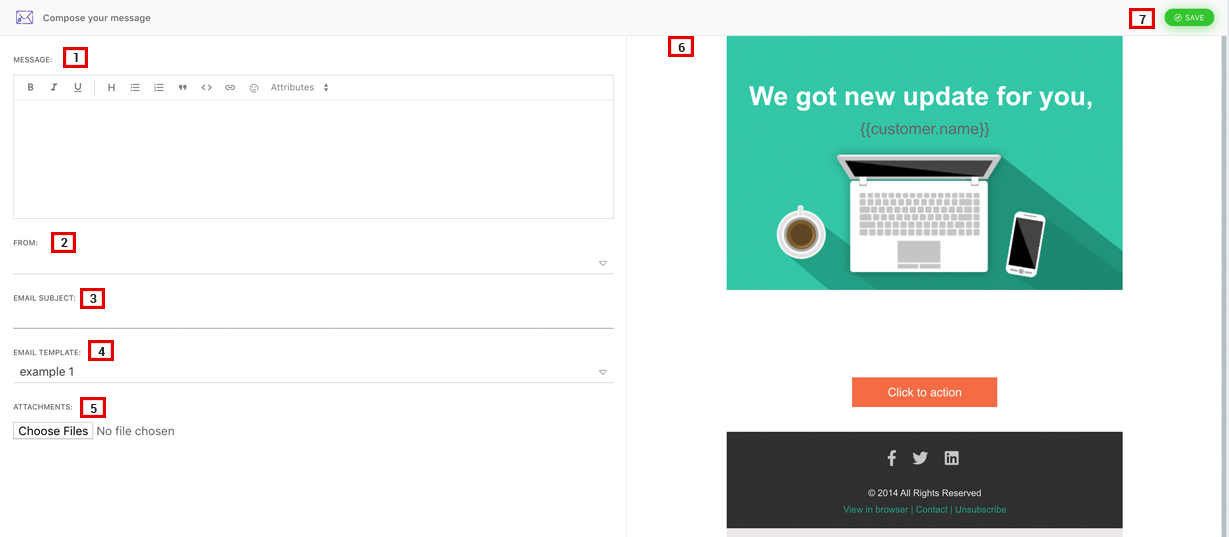
- Compose your message
- Choose Team member
- Insert Email subject
- Choose Email Template
- Attach Files
- Appearance of email
- Click Save
Visitor Auto message
Visitor Auto message is displayed for unregistered users who visits company’s integration.
- Please follow the steps for setup: Engage->New Message->Visitor Auto message->Add Rule
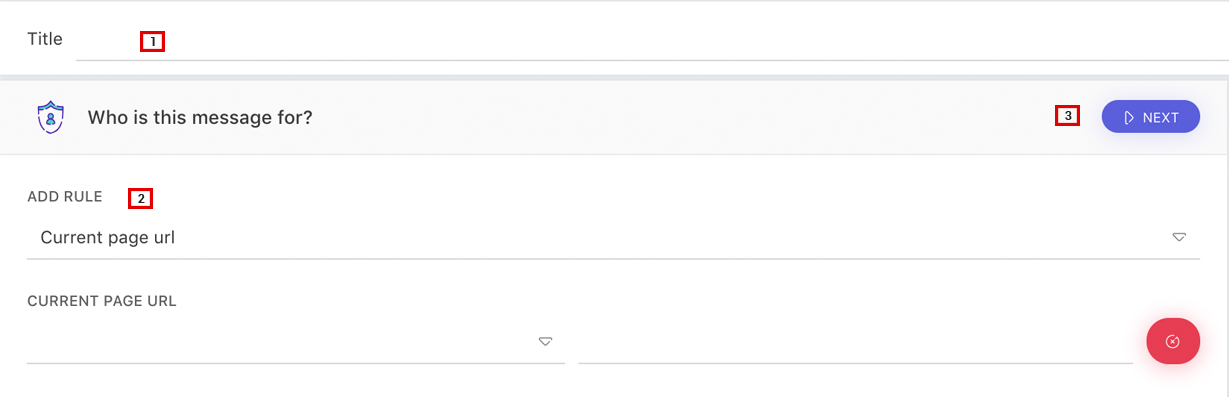
- Title for Visitor Auto message
- Add rule for visitors
- Click Next
- Please follow the steps for setup: Engage->New Message->Visitor Auto message->Add Rule->Compose your message

- Compose your message
- Write your message
- Select team member
- Choose brand
- Choose type to send auto message
- Appearance of auto message
- Click Save
Check how well you use knowledge base.
- Create Knowledge Base
- Create category
- Create article
- Place script code on website/messenger
- Edit article
- Check if it’s been edited on website/messenger