Sales pipeline
Easy and clear sales funnels allow you to control your sales pipeline from one responsive field by precisely analyzing your progress and determining your next best move for success.
- Please follow the steps for setup: Deals
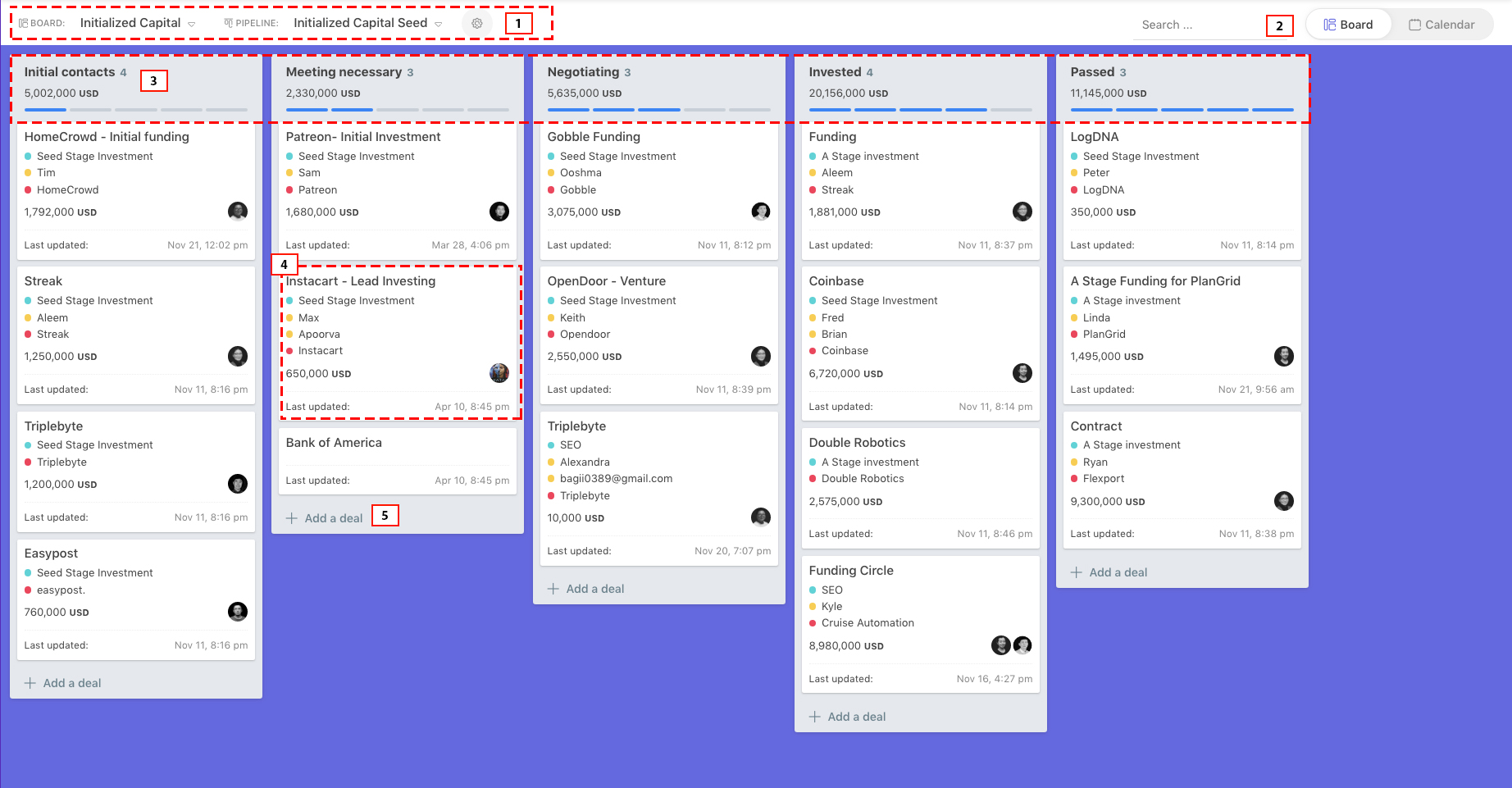
- Filter Deal by Board & Pipeline
- Click to view Calendar
- Stages of Deal
- Click on the Deal Card to see details
- Click Add Deal
Click on the created Deal Card to transfer it to the next stage
Deal calendar
View sales phases from calendar section by months from Deal feature.
- Please follow the steps for setup: Deals -> Calendar
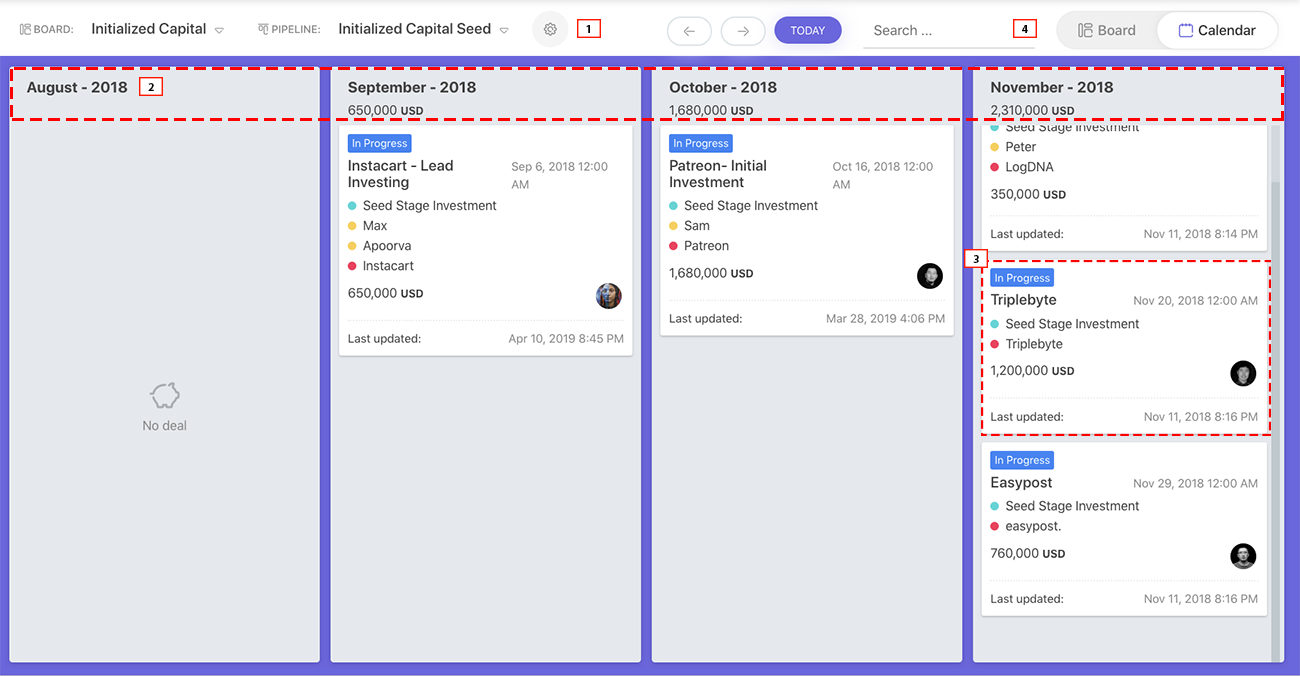
- Filter Deals by Board & Pipeline
- Deals by months
- Details of Deals
- Click on Board
Please see Board & Pipeline settings from Sales Team Settings
How to add New Deal?
- Please follow the steps for setup: Deals -> Add Deal
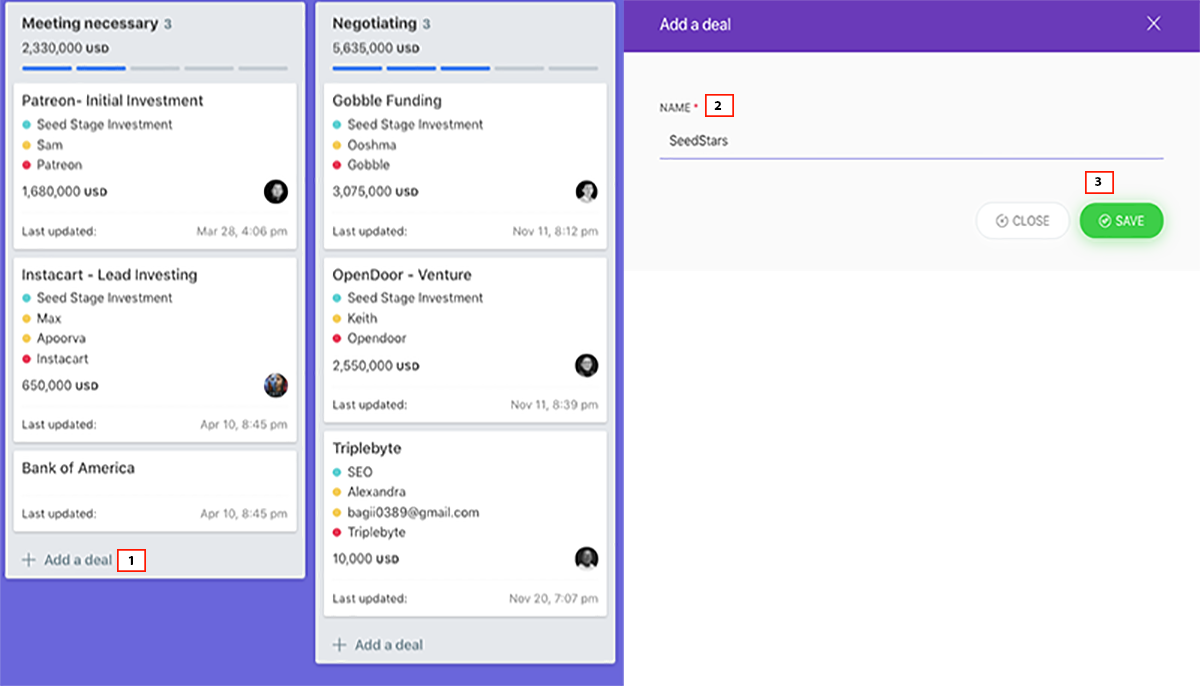
- Click Add Deal
- Insert Name for the Deal
- Click Save
Please see Board & Pipeline settings from Sales Team Settings
Edit Deals
- Please follow the steps for setup: Deals -> Deal Card -> Deal details
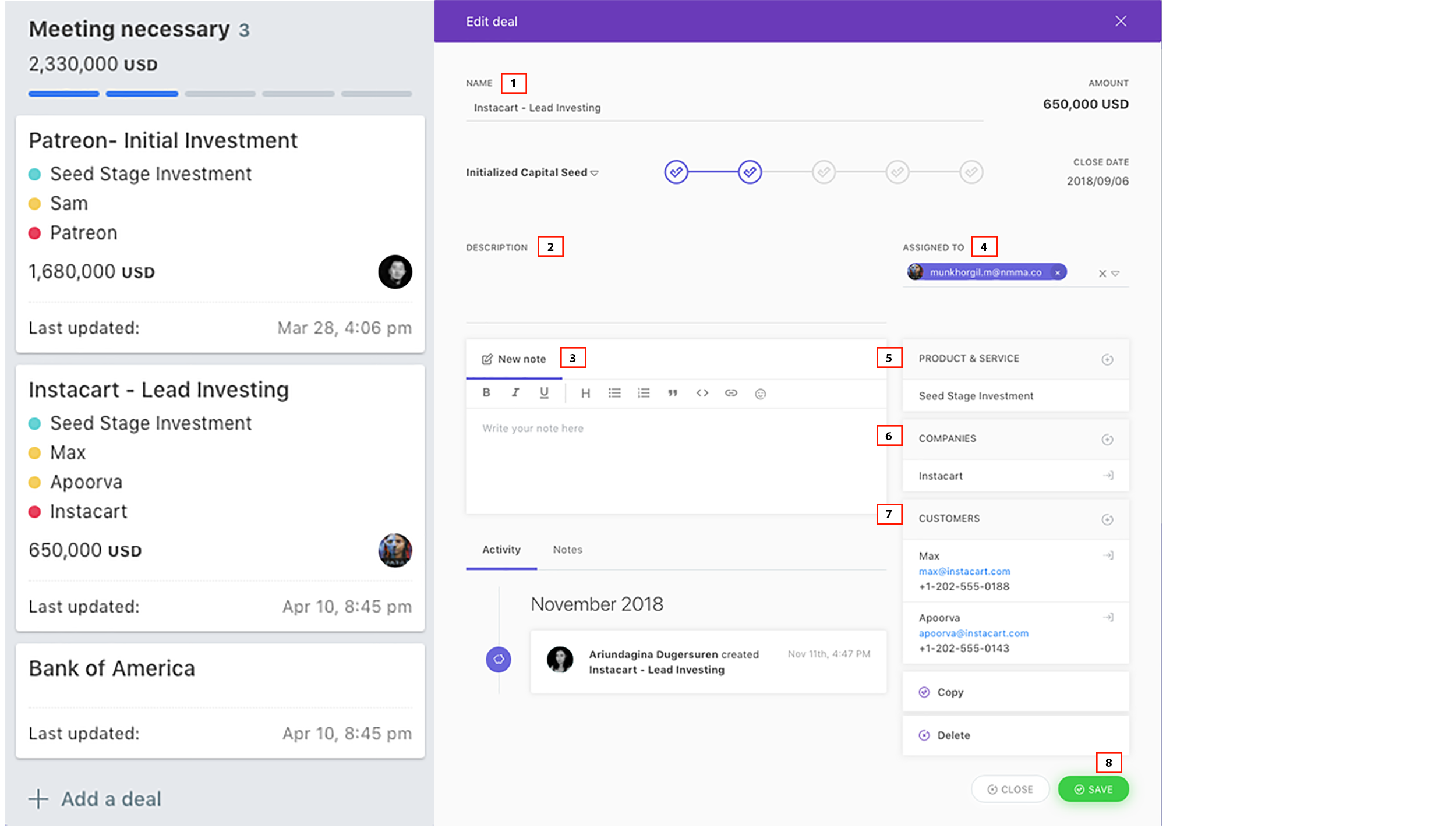
- Insert Deal Name
- Insert Description for the Deal
- Write New Notes related with the Deal
- Assign the deal to team members
- Add Product & Service
- Add Companies
- Add Customers
- Click Save
Click on the Deal Card to edit the Deal
Campaign
Start converting your prospects into potential customers through Email, SMS, Messenger or more interactions to drive them to a successful close.
- Please follow the steps for setup: Engage
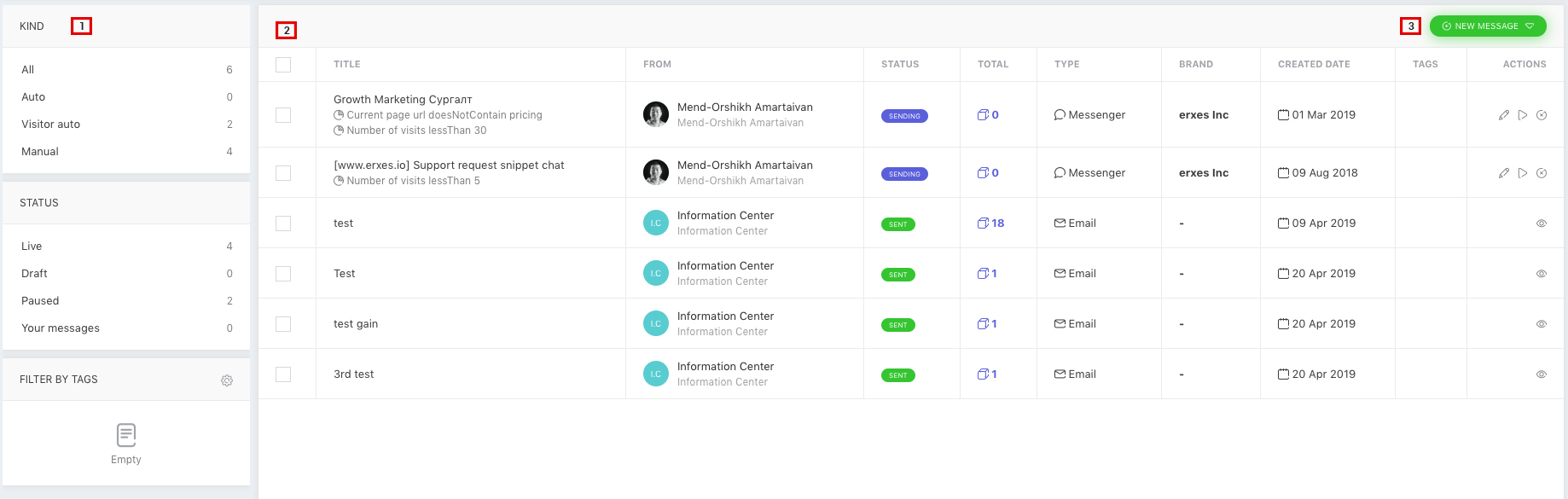
- Filter by Kind, Status, Tags
- List of Created Engage
- Click New Message
- Please follow the steps for setup: Engage->New Message
The Engage feature consists of three types of messages:
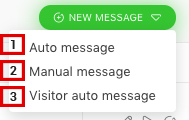
- Auto message
- Manual message
- Visitor auto message
Auto message
Send mass emails to your target customers automatically at scheduled time. The chosen segments for the customers will be updated automatically. You may pause your emails at any time.
- Please follow the steps for setup: Engage->New Message-> Choose Channel

- Insert Title for Auto Message
- Choose Channel
- Click Next
- Please follow the steps for setup: Engage->New Message-> Choose Channel->
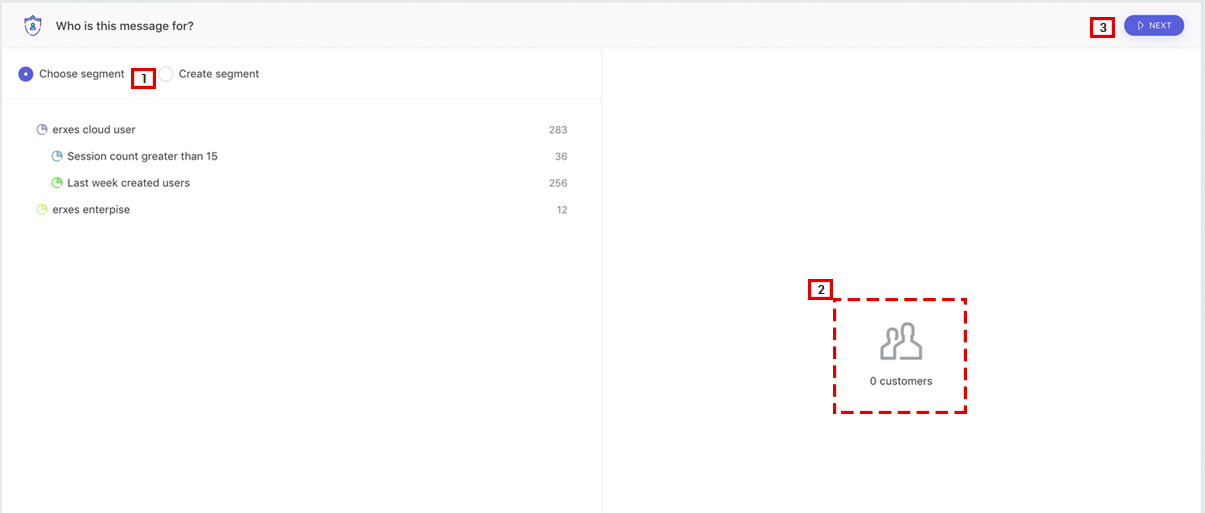
- Choose Segment/Create Segment
- Number of customers
- Click Next
- Please follow the steps for setup: Engage->New Message-> Choose Channel-> Compose your message

- Type your message
- Choose team member to send from
- Insert email subject
- Choose email template
- Attach files
- Set your schedule
- Set your month
- Set your day
- Set time
- Appearance of message
- Click Save to send
- Please follow the steps for setup: Engage

- Pause/Send message automatically at any time
Manual Message
Main function of Manual message is to send mass emails only once
- Please follow the steps for setup: Engage->New Message->Manual message->Choose Channel
- Insert Title for Manual Message
- Choose Channel
- Click Next
- Please follow the steps for setup: Engage->New Message->Manual message->Choose Channel->Choose Segment
- Choose Segment
- Numbers of customer to receive manual message
- Click Next
- Please follow the steps for setup: Engage->New Message->Manual message->Choose Channel->Choose Segment->Compose message
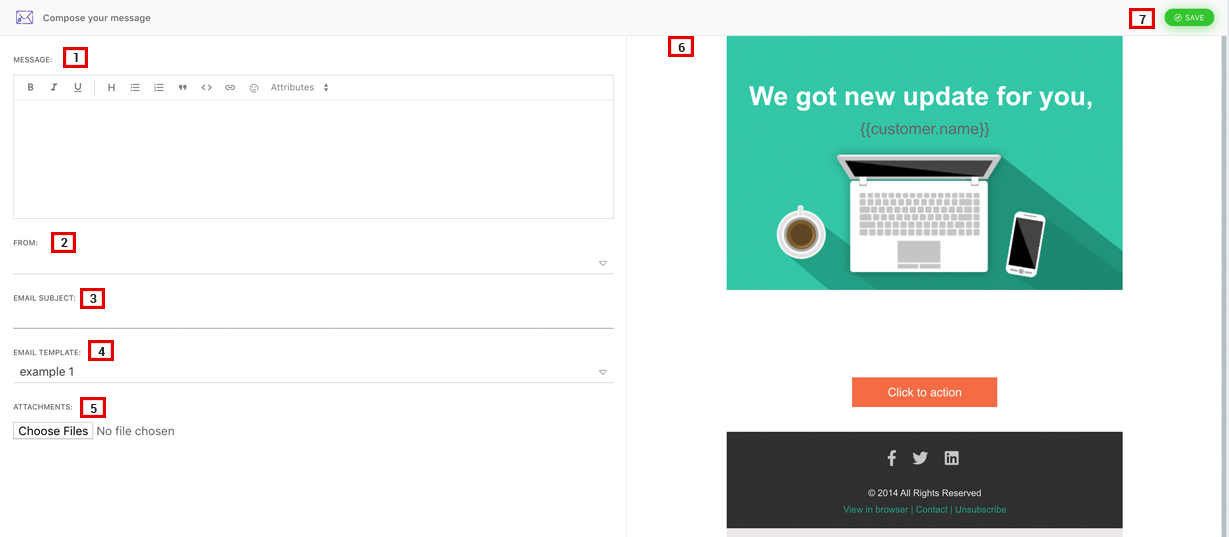
- Compose your message
- Choose Team member
- Insert Email subject
- Choose Email Template
- Attach Files
- Appearance of email
- Click Save
Visitor Auto message
Visitor Auto message is displayed for unregistered users who visits company’s integration.
- Please follow the steps for setup: Engage->New Message->Visitor Auto message->Add Rule
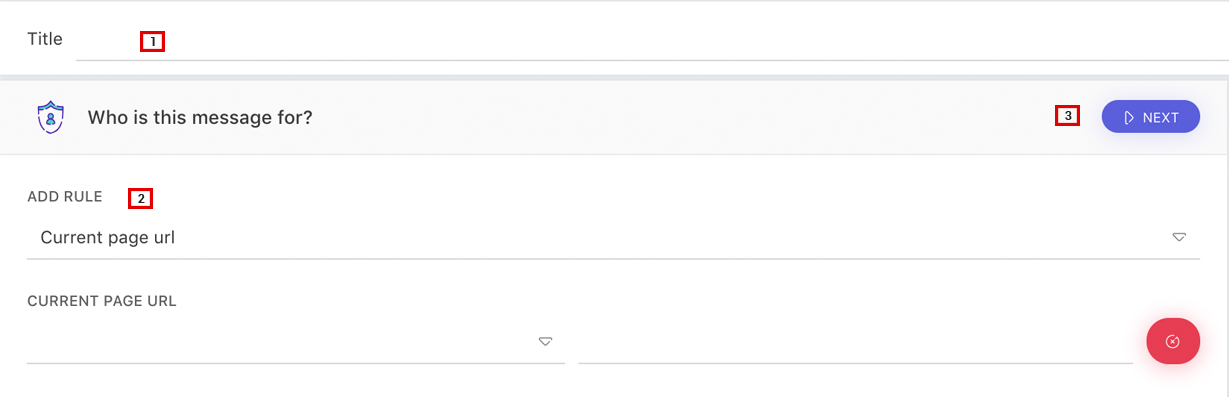
- Title for Visitor Auto message
- Add rule for visitors
- Click Next
- Please follow the steps for setup: Engage->New Message->Visitor Auto message->Add Rule->Compose your message

- Compose your message
- Write your message
- Select team member
- Choose brand
- Choose type to send auto message
- Appearance of auto message
- Click Save
Check how well you use sales pipeline.
- Assign member on the card
- Insert information on description
- Label the card
- Create checklists
- Create properties in the card
- Connect Task & Ticket
- Leave note for the team members
- Create campaign related to ticket
- Invite dedicated team members to the pipeline only
- Search particular information you would like to know about
- See filtered views
- See monthly view
- Resolve the card