Indra Ganzorig16 Jul 2021
1. Email Setup
The first part of this article contains information on how to properly set up your email configurations. Scroll down for the video guide.
1.1 Prepare your email address
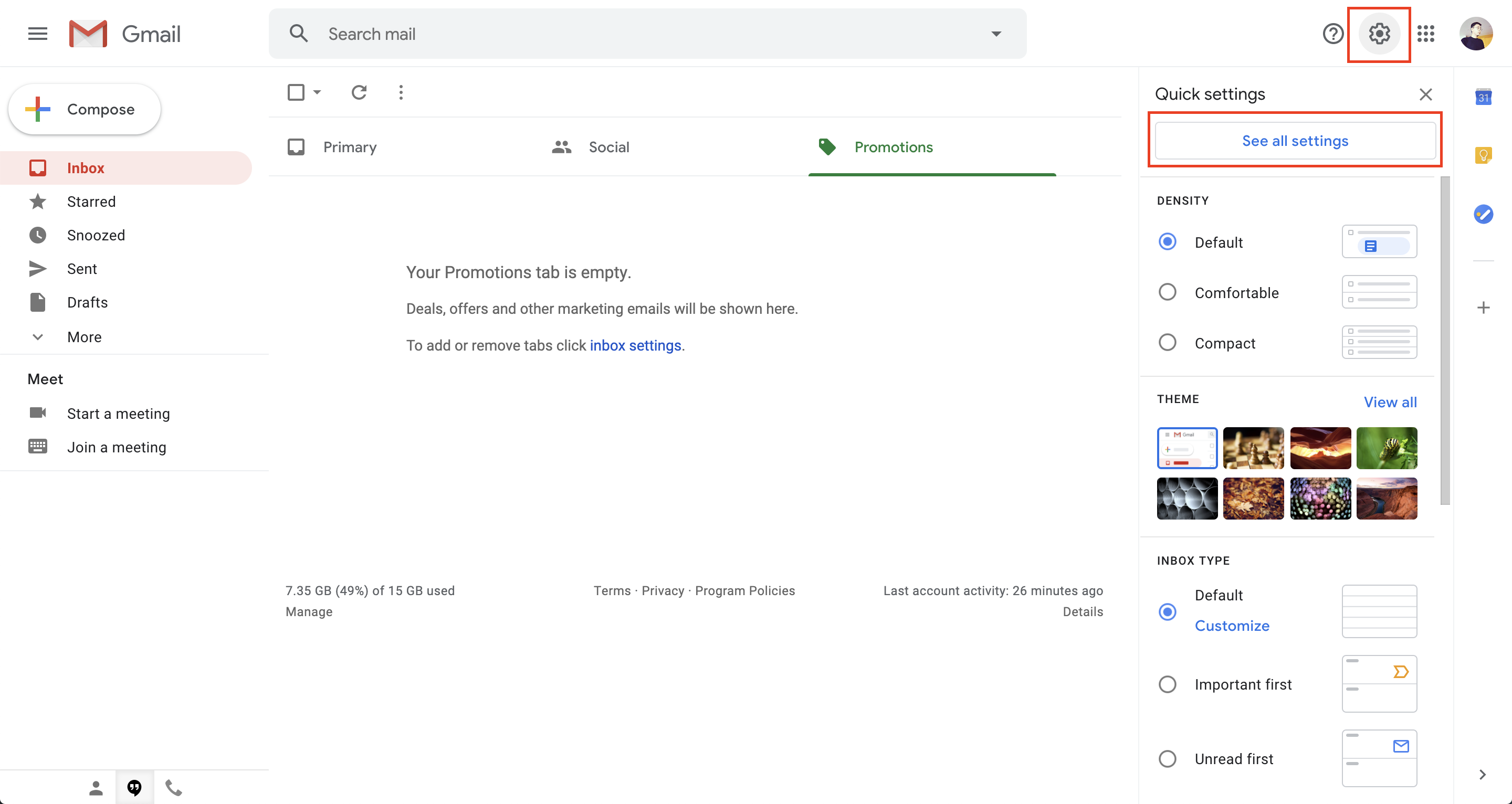
- In order to integrate your Gmail, you also need to make some changes to your Gmail. Go to Settings -> 'See all settings':
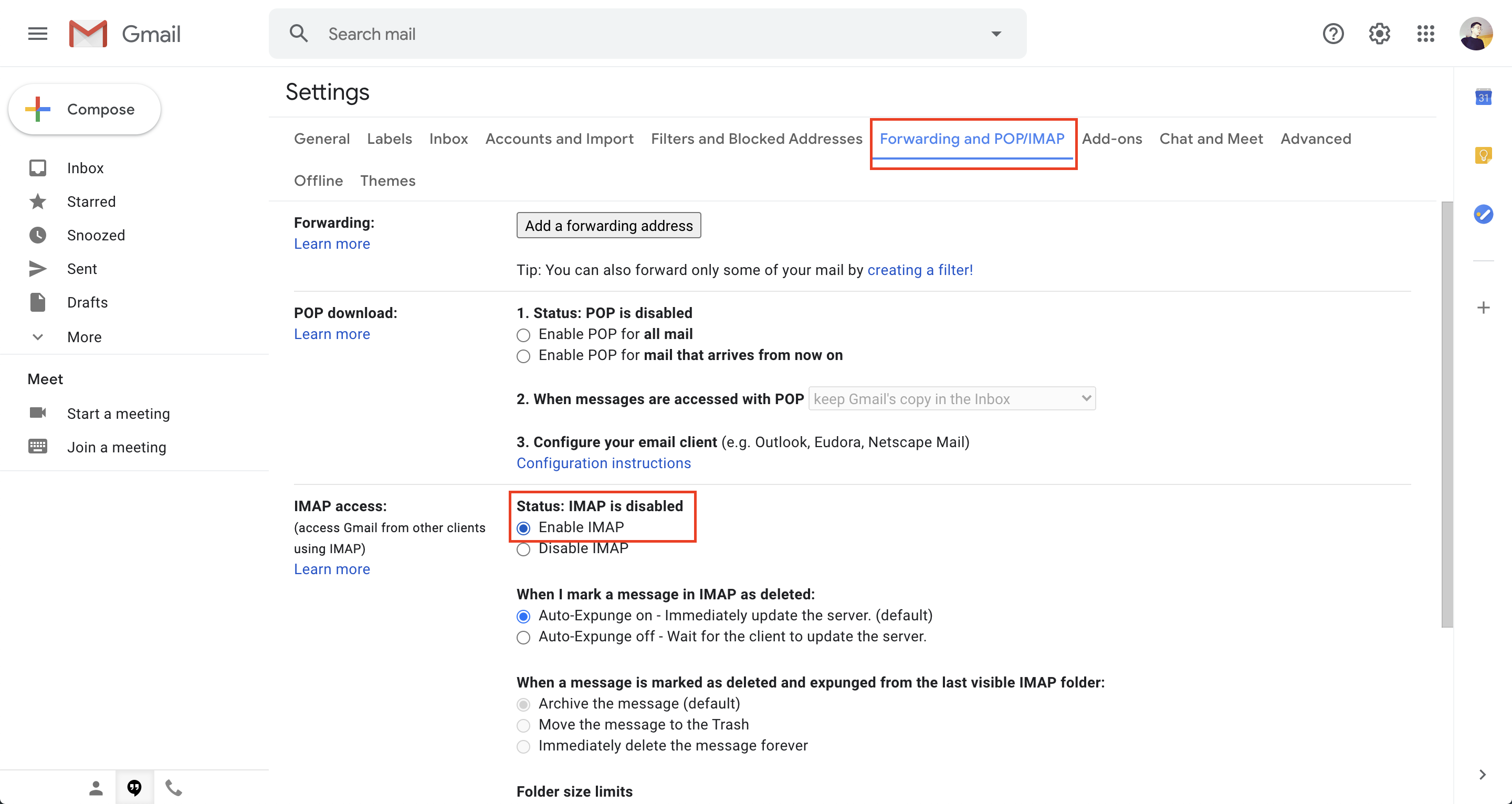
- In the Settings section click on the 'Forwarding and POP/IMAP'.
- Enable IMAP and click on the 'Save Changes' button on the bottom of the page:
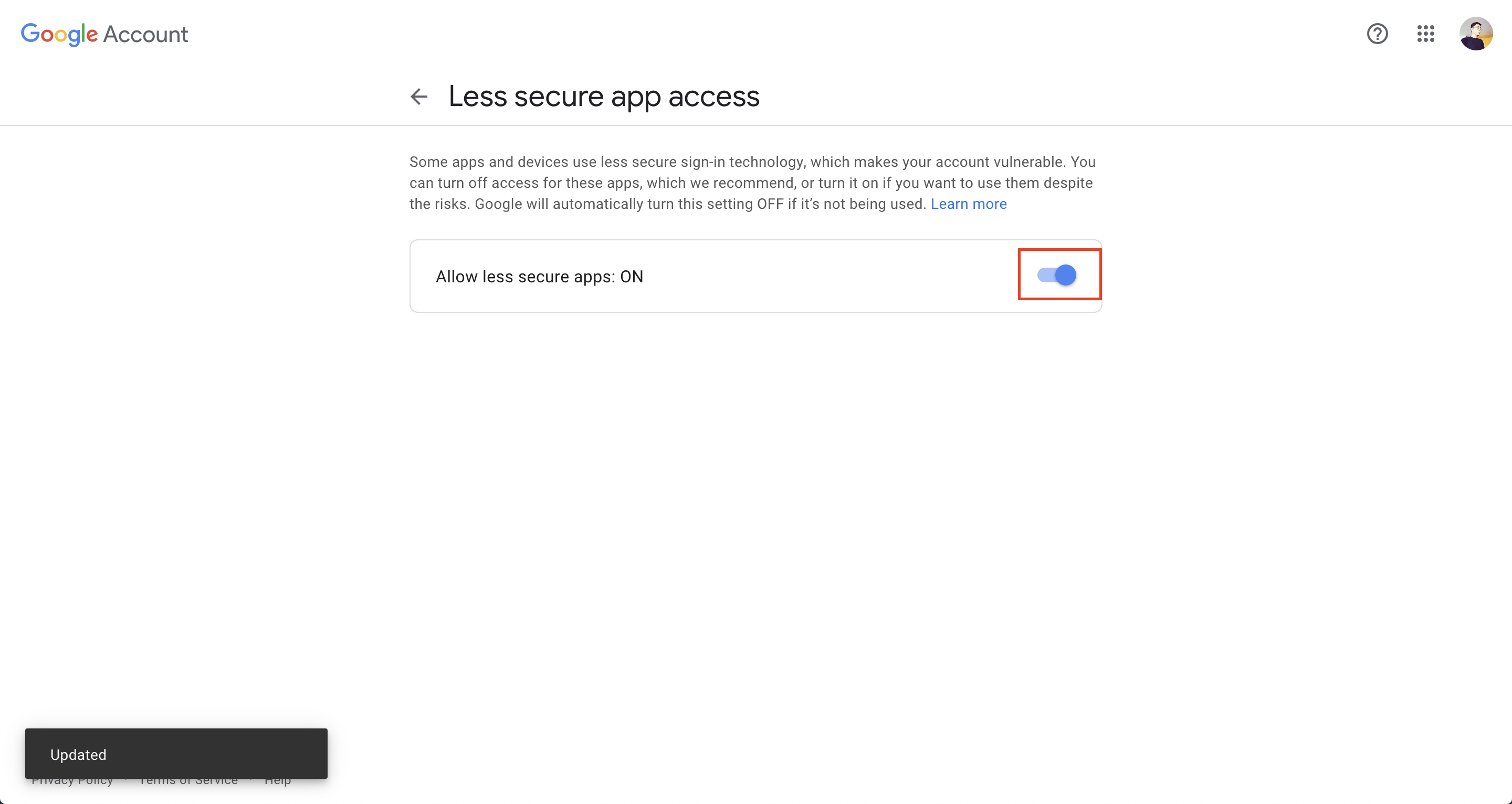
- The next step is to enable 'Less secure app' access in Google Settings. This is because Google automatically blocks third-party access. Please make sure that you selected the correct account in the right sidebar of your browser.
- [OPTIONAL] If you're using GSuite account, the admin should go to the Google Admin console and allow users to manage their access to less secure apps.

- Go to https://accounts.google.com/b/0/DisplayUnlockCaptcha and click "Continue. To change accounts, change /0/ of the URL with the same number of your account. The number is associated with the order of your Google accounts in the list. For example, 0 is the first account, 1 is the next account, etc.

1.2 Integrate your Gmail on erxes
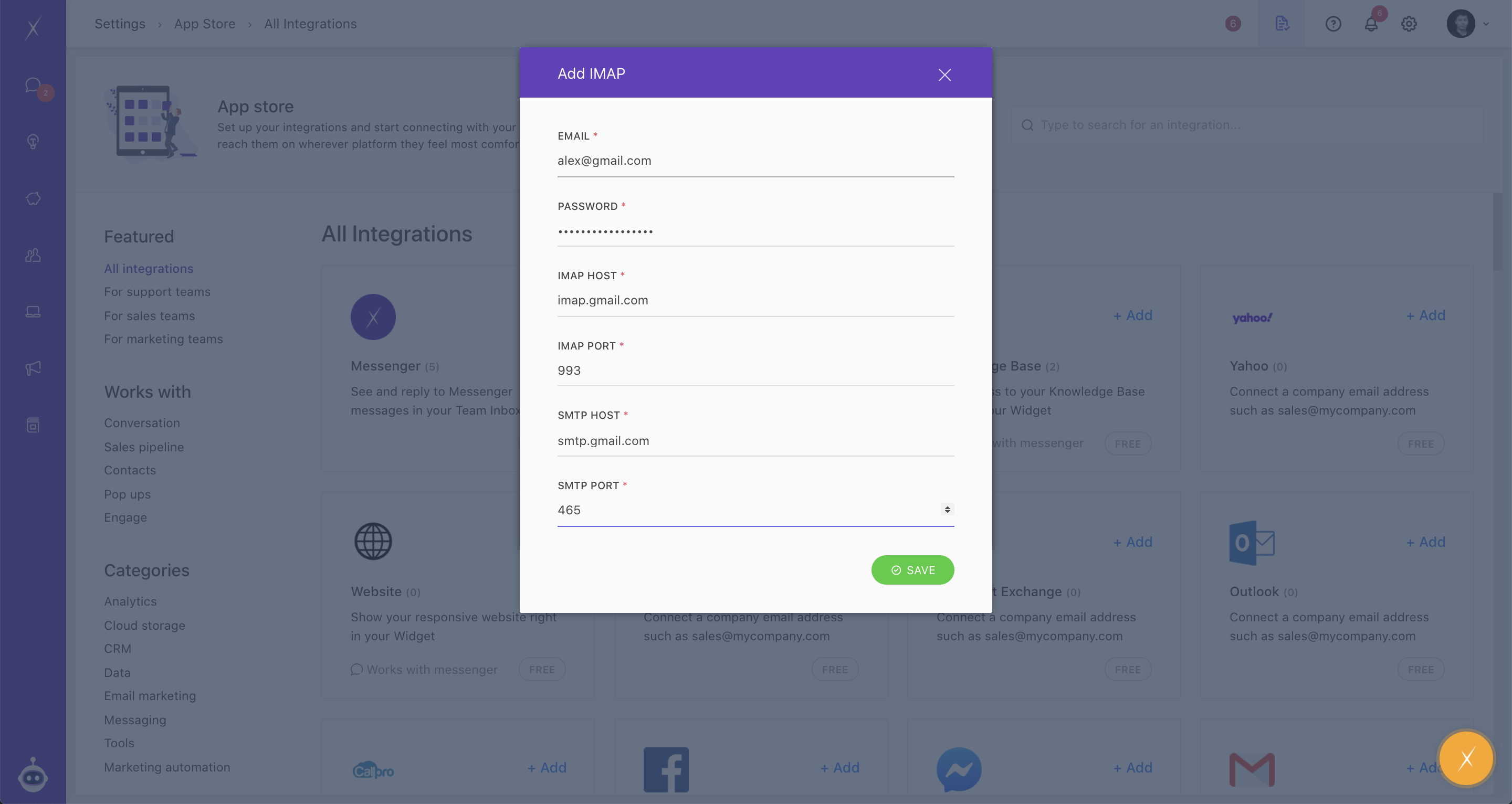
- To connect your Gmail, go to Settings -> Integrations Settings -> App Store -> IMAP
- Enter your email credentials and choose the Channel and Brand
- Fill out the IMAP/SMTP details as follows:
- IMAP HOST: imap.gmail.com
- IMAP PORT: 993
- SMTP HOST : smtp.gmail.com
- SMTP PORT: 465
1.3 Verify your email address
- Go to Settings -> System Config -> Engage Config
- Type in your email address and click Verify.
- Once you receive a verification email from AWS in your email inbox, just click on the link and it is done.

1.4 Add a team member
- Make sure the email address you've used is also added as a team member.
- To invite a team member go to Settings -> Team Member:

Here is the video guide explaining the above steps:
2. Sending Individual Emails
The following part outlines how to send an individual email to one particular or select a few contacts.
- You can send an email to contact straight from the Team Inbox or Contact Profile
- You can also choose multiple contacts and send emails in the Contact feature
3. Sending Bulk Emails
This last part describes the process on how to send bulk emails with Engage feature.
- Decide and set up how you want to categorize your Contacts for email engagement:
- by Tags
- by Segments
- by Brands
- Import or manually add your Contacts
- Prepare/Create Email Templates
- Verify the email address you want to send your emails from by going to General Settings -> System Config -> Engage Config
- Create an email from Engage section
Learn more about how to send automated emails here.