Mend-Orshikh /MJ/ Amartaivan15 May 2023
Knowledge bases allow organizations to train and provide information to customers and team members by creating and answering common questions on their websites. They can also be created to be used internally to provide information about the organization's internal activities, rules and regulations. It can be used as a FAQ or for posting useful articles for both customers and members that can be updated constantly. We can create knowledge bases in the following ways.
- As a single help page on the website.
- As a subsection in a website’s Business Messenger.
- As an internal information hub. The client portal, team members or users can view these knowledge bases when logged in erxes.
info INTRODUCTION
Knowledge bases are extremely helpful for educating clients and team members. They can be made by the following steps:
- Think about what information your organization's users and/or team members may benefit from. Once you know what kind of information you would like to provide, you can structure the knowledge base and publish it into the system.
- Knowledge bases have the following structure:
- Title
- Category (multiple categories can be under the same title)
- Articles (multiple articles can be under the same category)
- Knowledge bases have the following structure:
- Implement your material through your website’s system.
- This step will require the help of a tech team. Contact your organization's technology specialist or a erxes customer service specialist for assistance.
- For more information on placing your knowledge base after completing the above steps, see the Knowledge Database Layout section in the Configuration section.
How to create a knowledge base
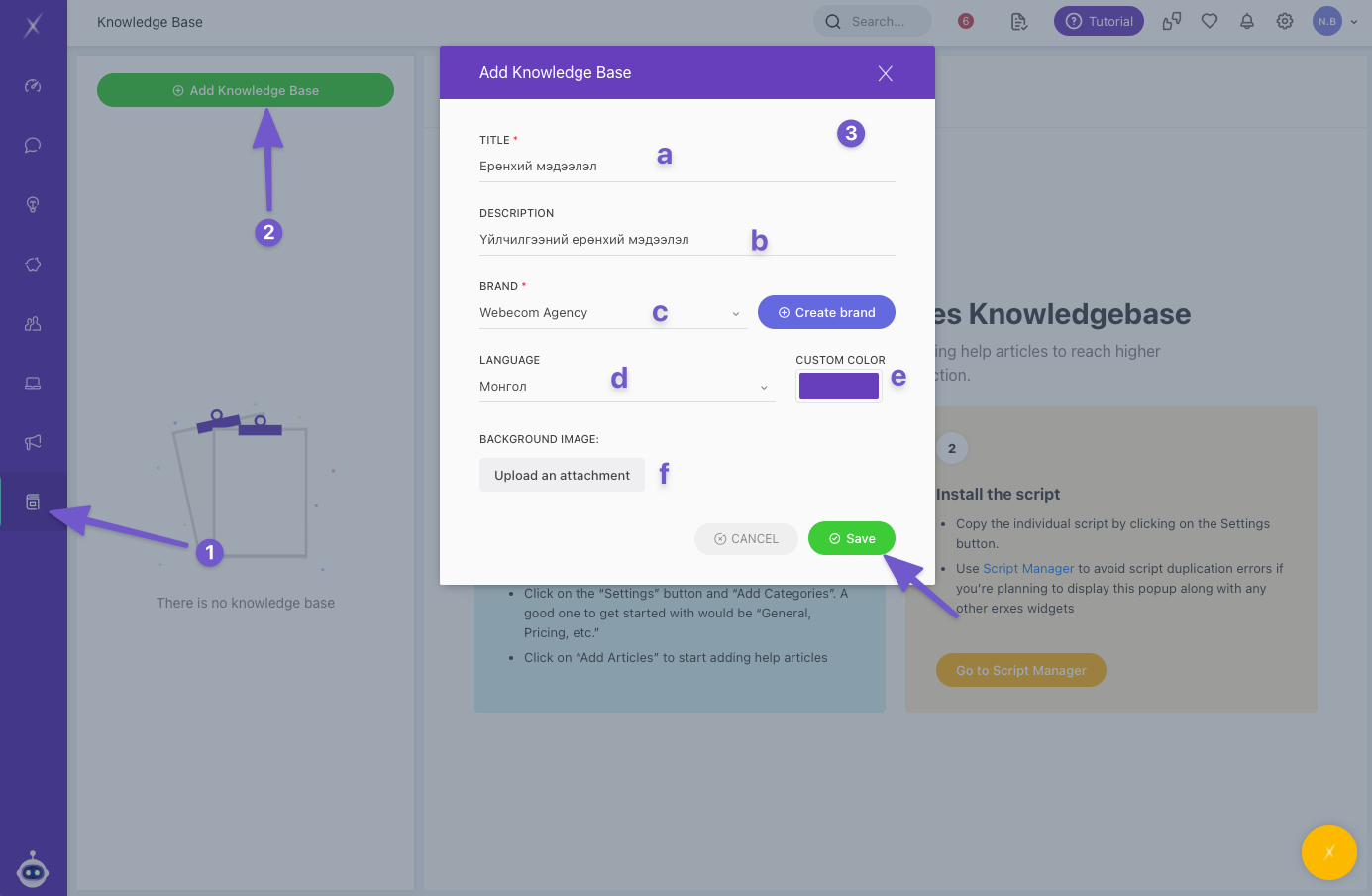
- Click on Knowledge Base on the main menu.
- Click +Add Knowledge Base.
- Enter the following information about the Knowledge base: Title, Description, Brand, Language, Custom color, and Background image. Click Save to successfully create the knowledge base.
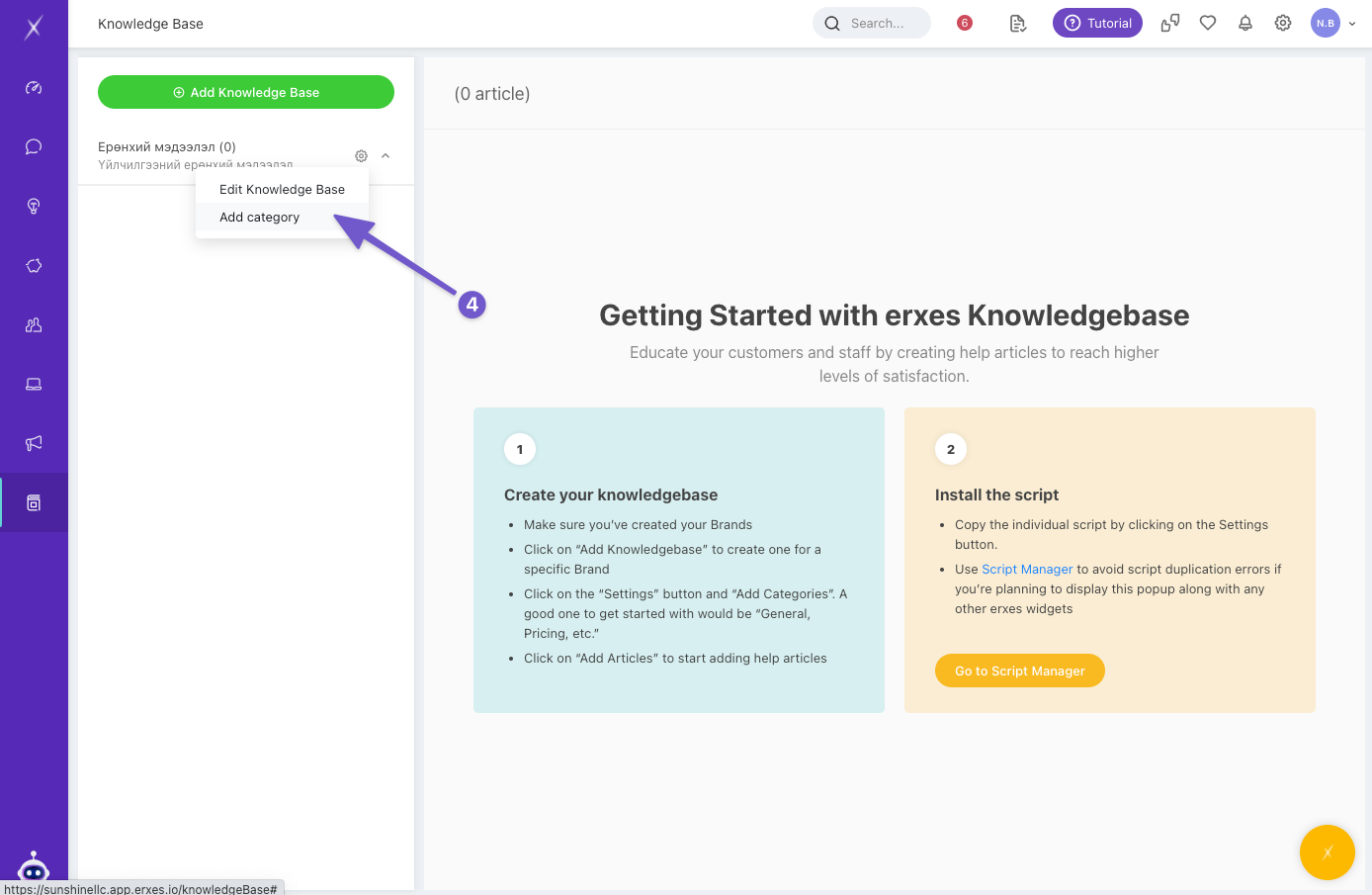
- Select ⚙️ on the right of the title to edit the knowledge base and add categories in the knowledge base.
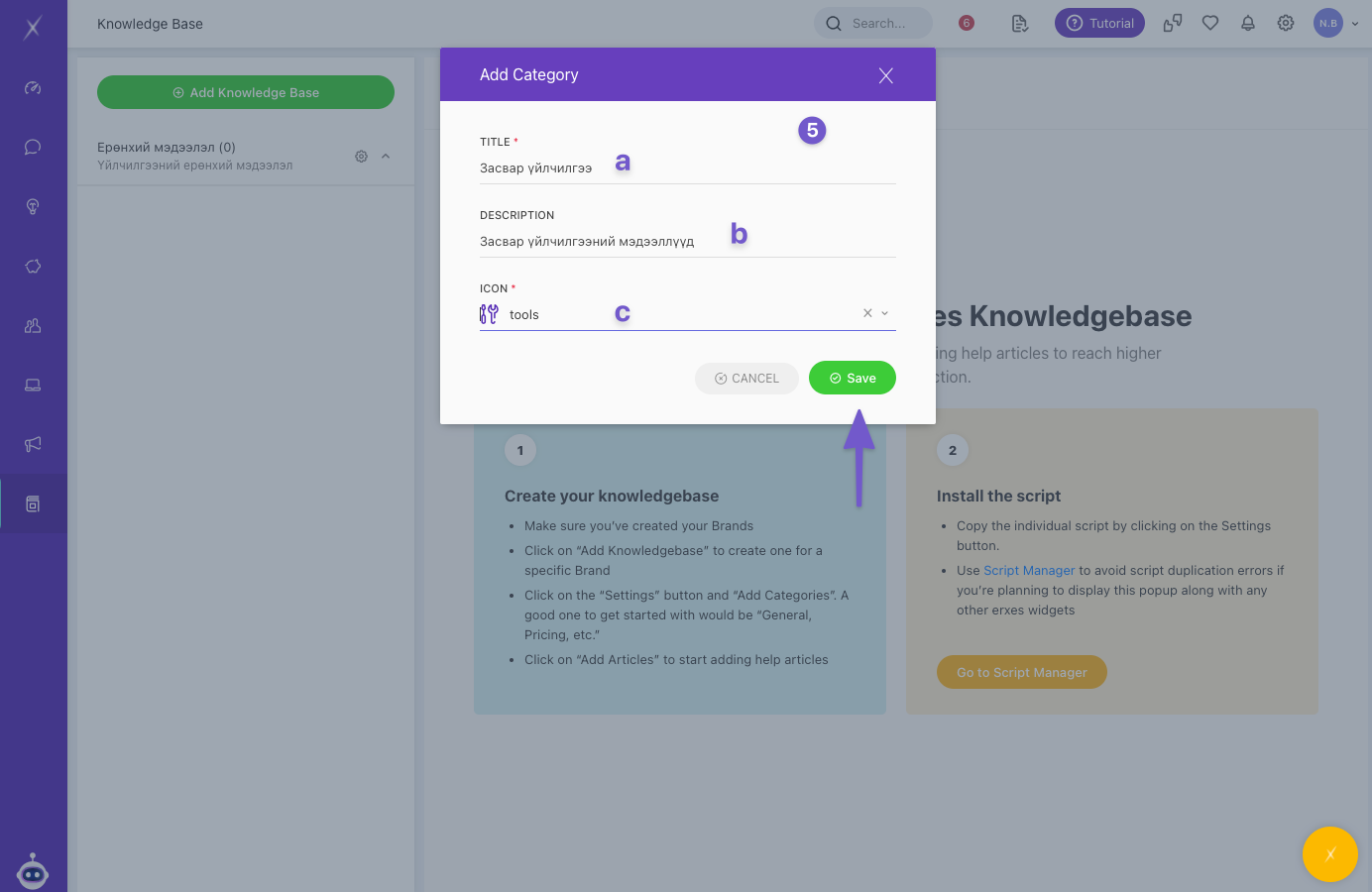
- When you click Add category, enter the following information: Title, Description, and Icon. Click Save to successfully create a new category in the knowledge base.
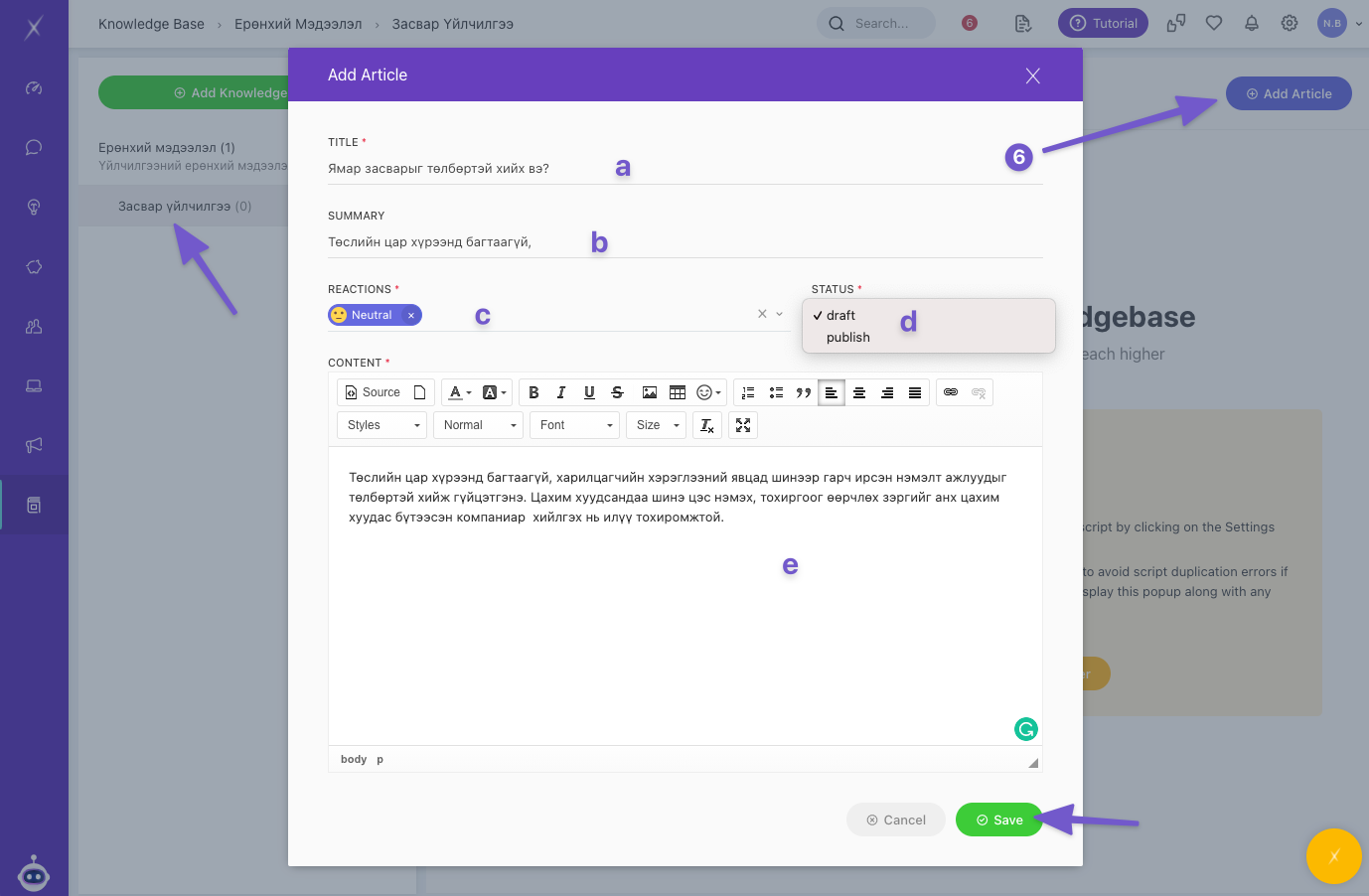
- To create an article, select a relevant category and click Add article. Enter the following information: Title, Summary, Reaction, Status (draft or published), and the articles Content.
- You can edit everything by clicking 🖋️ next to the article.