The sales pipeline section helps team members with the process of receiving, managing, and resolving incoming sales deals.
The sales pipeline menu allows you to organize and customize the way your organization's sales deals are viewed and collected on erxes in the following ways.
- Save multiple Pipelines on a single Board.
- There are two subdivisions for pipelines, which can be customized to your organization’s needs. Each pipeline can be dedicated to a team within your organization.
If your organization does not have many team members, creating a single pipeline would be beneficial. As you can organize different deals/tasks in the Label or Properties section of the pipeline, it may be more convenient for a small team to work on one board. This saves time as it reduces time spent navigating around multiple screens as everything is sorted and funnelled into one page.
After setting up this section, you can learn more about how to use this menu effectively in the Sales Pipeline menu.
How to create sales boards and pipelines
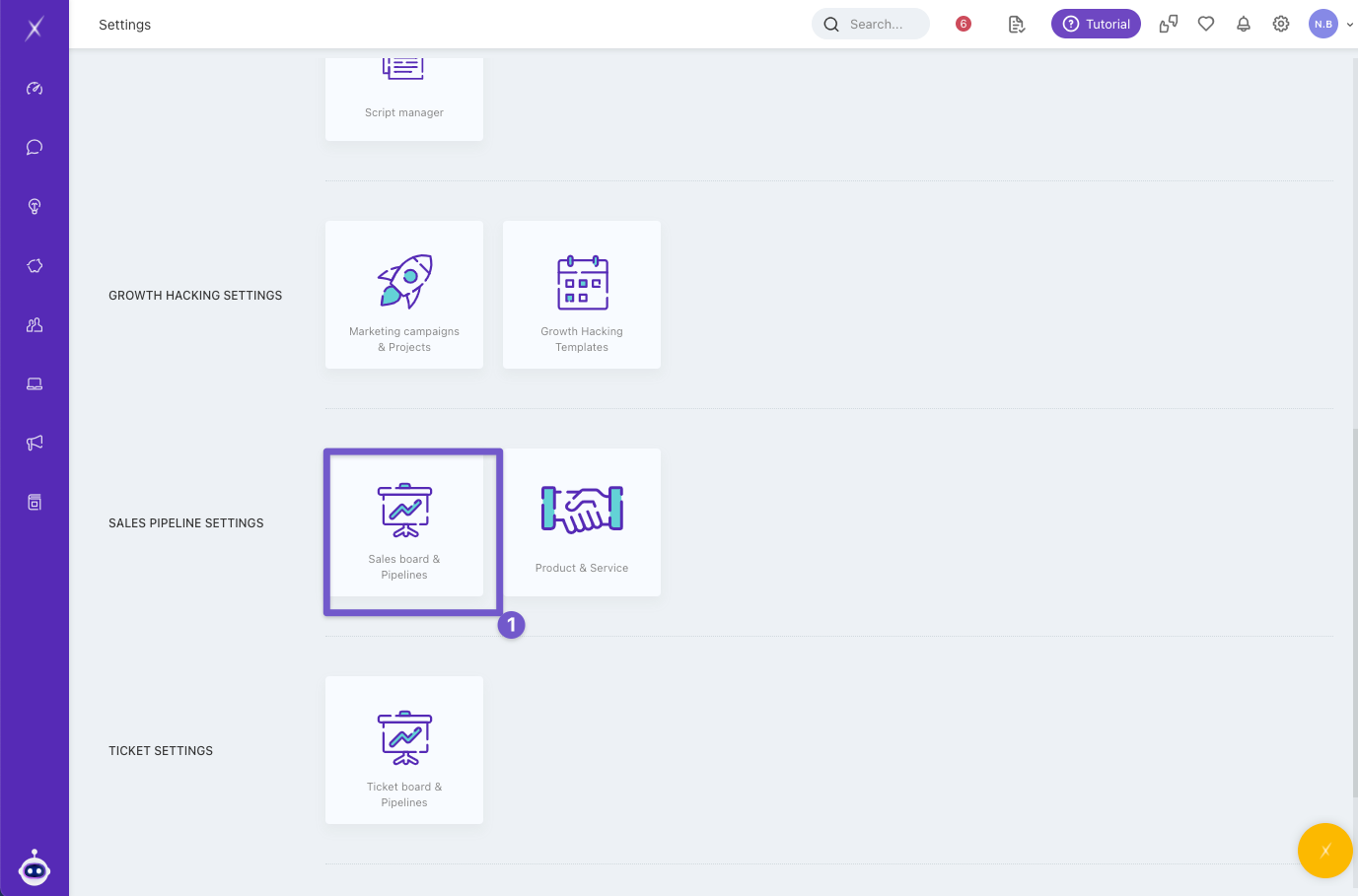
- Click on the Sales board & pipeline in the Settings menu.
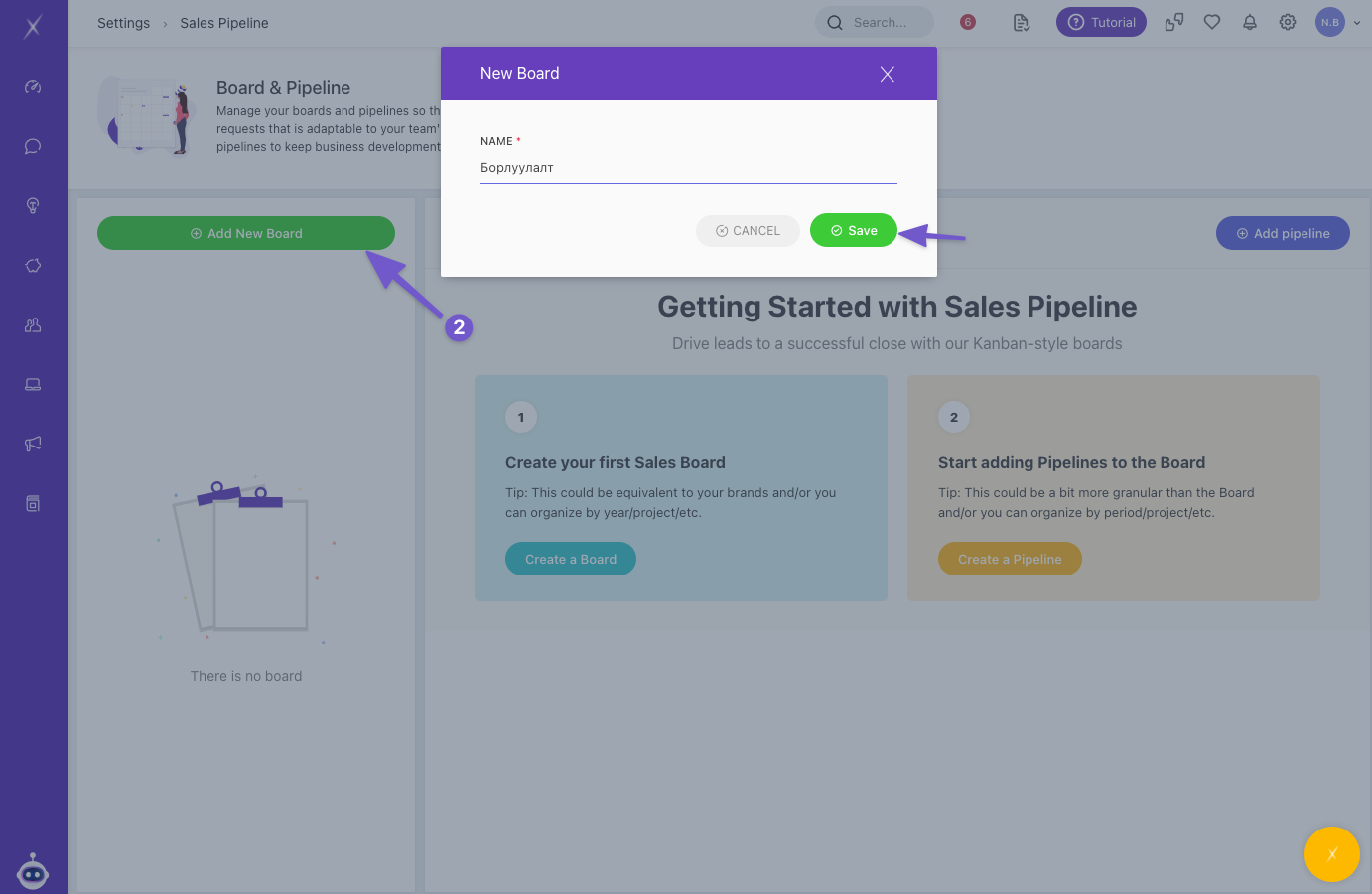
- Click Add board and enter the name of the board.
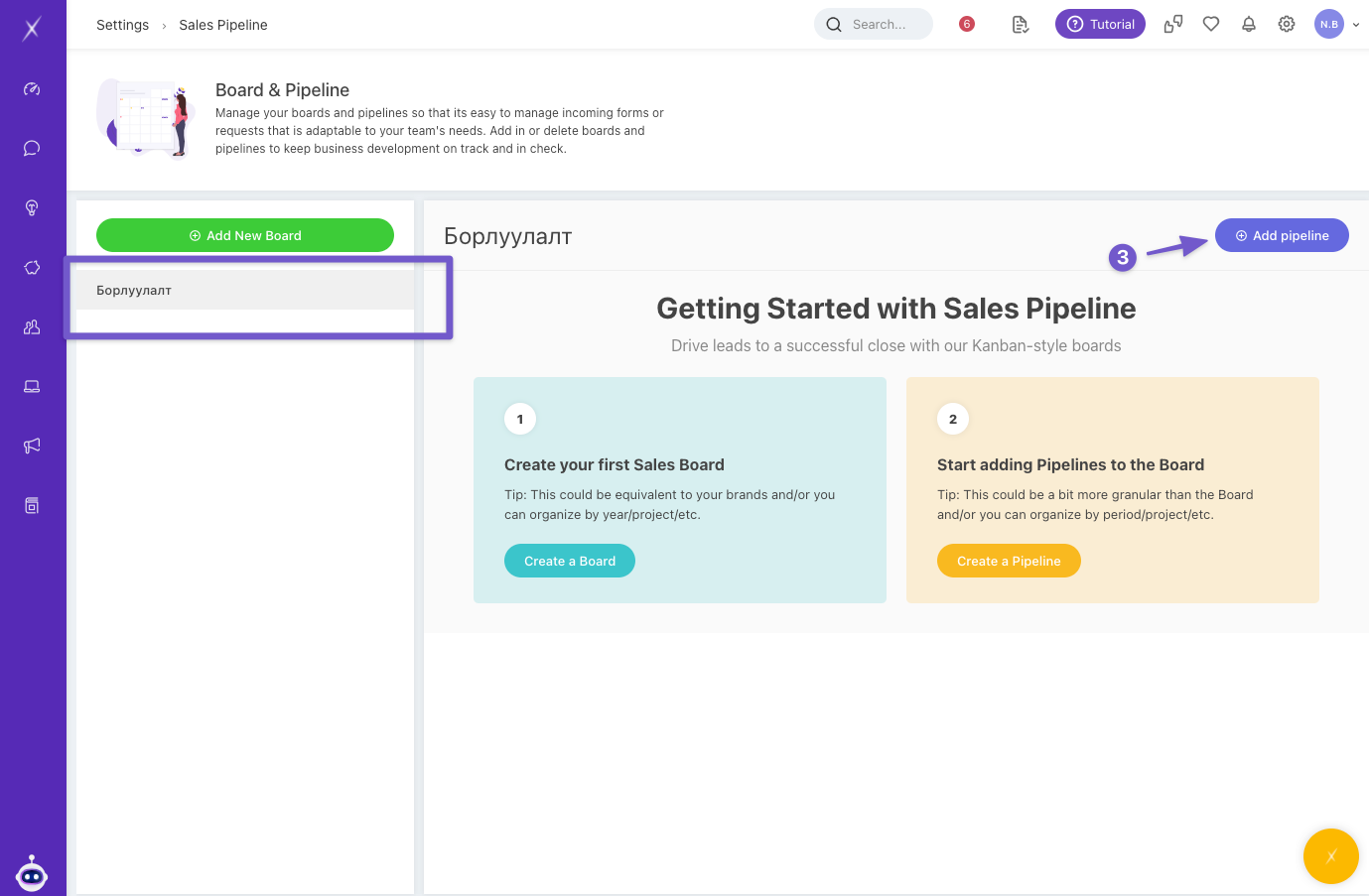
- Select the created Board and click Add Pipeline to create its subsections.
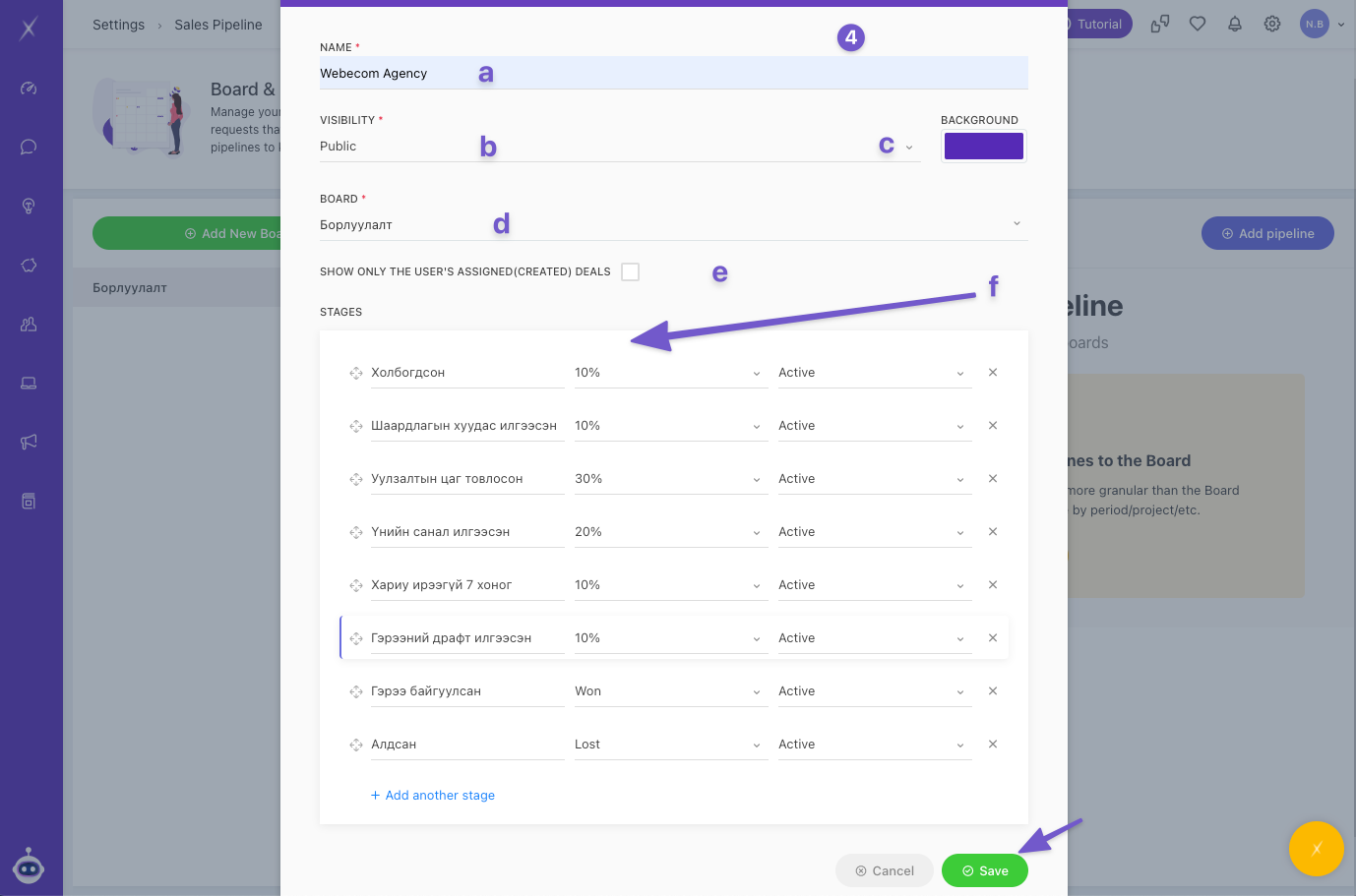
- Enter the following information to customize your pipeline to your preferences.
- Name
- Visibility
- Public: Visible to all members.
- Private: Visible to only selected members.
- Background colour: Choose a default or enter the color code.
- Board: Choose the board the pipeline belongs to.
- Show only the user’s assigned (created) deals: Check this button if you would like all assigned tasks to be visible to all members.
- Stages: This is essentially your sales performance timeline/stages. You will be able to add and categorize deals under these created stages to discern what stage the deal is at.
- Stage name
- Enter the percentage of the work that would be considered completed during this stage.
- Enter Won at the stage where the sale was considered successful, and Lost at another stage where the sale was lost.
- You can view your customizations and add deals to your sales board by clicking on the Sales Pipeline section. For more information on how to use this section effectively, check out the Sales Pipeline menu.