This article covers these common email providers:
- Yahoo
- Gmail
- Outlook
- Zoho
Yahoo
Some older, third-party email apps (that do not use our Yahoo branded sign-in page) require you to enter a single password for login credentials. To access your Yahoo Mail account on these apps, you'll need to generate and use an app password. An app password is a long, randomly generated code that gives a non-Yahoo app permission to access your Yahoo account. You’ll only need to provide this code once to sign in to your third-party email app.
Generate an app password
- Sign in and go to your Account security page.
- Click Generate app password or Manage app passwords.
- Select your app from the drop-down menu and click Generate.
- Follow the instructions below the password.
- Click Done.
- Use this app password and your email address to sign in to your email app.
- Add the following details along with your account credentials when you add an IMAP integration in erxes:
IMAP PORT: 993
SMTP HOST: smtp.mail.yahoo.com
SMTP PORT: 465 or 587
Gmail
1. In order to integrate your Gmail, you also need to make some config in Gmail. Go to Settings => See all settings:

2. Click on Forwarding and POP/IMAP and enable IMAP:

3. Enable Less secure app access in Google settings because Google automatically blocks third-party access:

If you're using a GSuite account, please the admin should go to the Google Admin console and allow users to manage their access to less secure apps.
4. Allow access to your Google account by going to https://accounts.google.com/b/0/DisplayUnlockCaptcha:
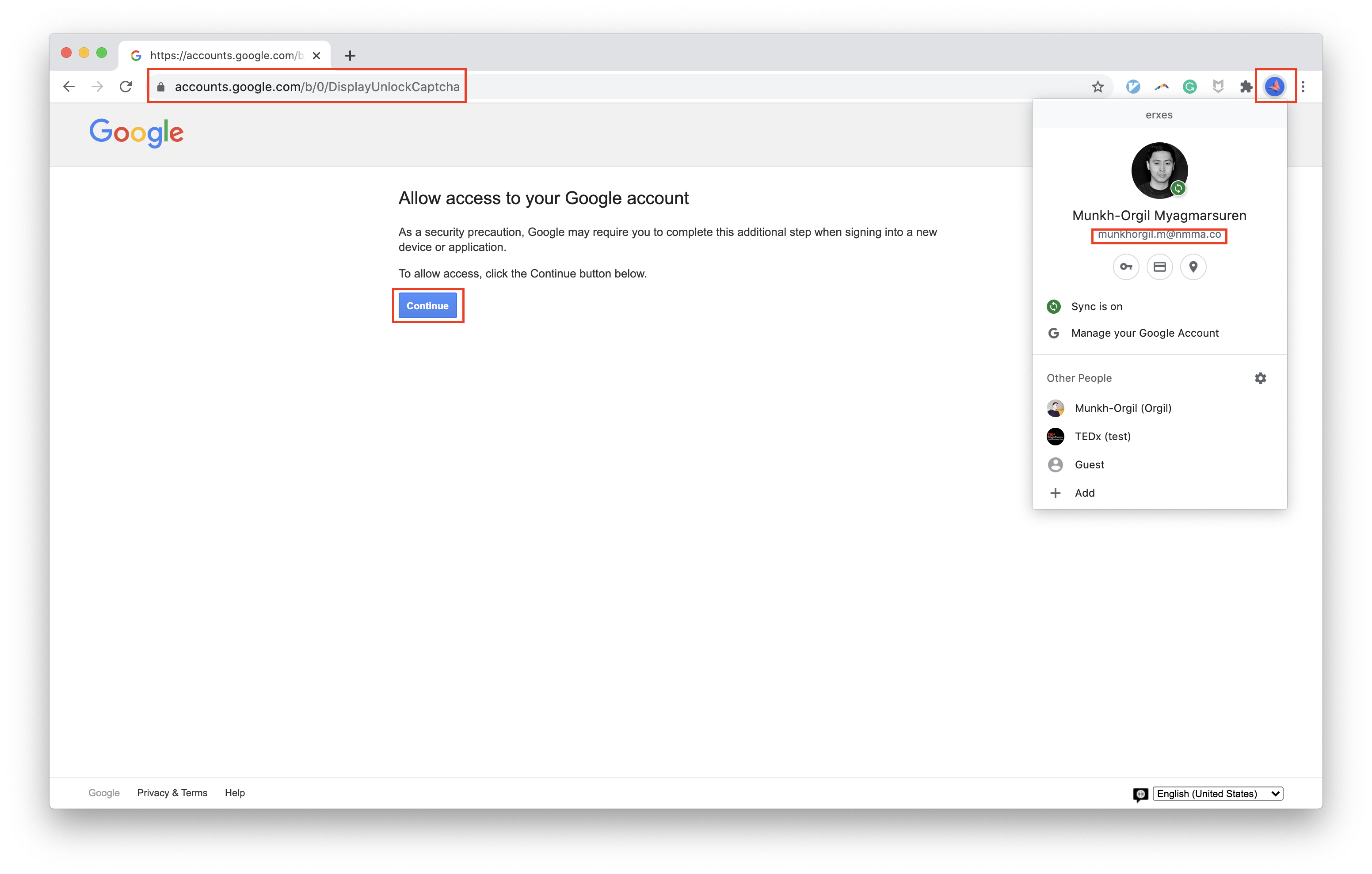
5. Go to Erxes settings => App Store => IMAP:

6. Add the following details along with your account credentials when you add an IMAP integration in erxes:
IMAP PORT: 993
SMTP HOST: smtp.gmail.com
SMTP PORT: 465

Outlook
- Click the File → Info → Add account. The Outlook wizard for setting up a new account will open.
- Enter an email address to add your account.
- Click Advanced options and check the box for Let me set up my account manually.
- Click Connect.
- Choose the account type IMAP. The dialog IMAP Account Settings will open up.
- Add the following details along with your account credentials when you add an IMAP integration in erxes:
IMAP PORT: 993
SMTP HOST: smtp.mail.com
SMTP PORT: 587
Zoho
- Login to Zoho Mail
- Go to Settings
- Navigate to Mail Accounts >> Configure IMAP
- Under IMAP section, check the IMAP Access box.
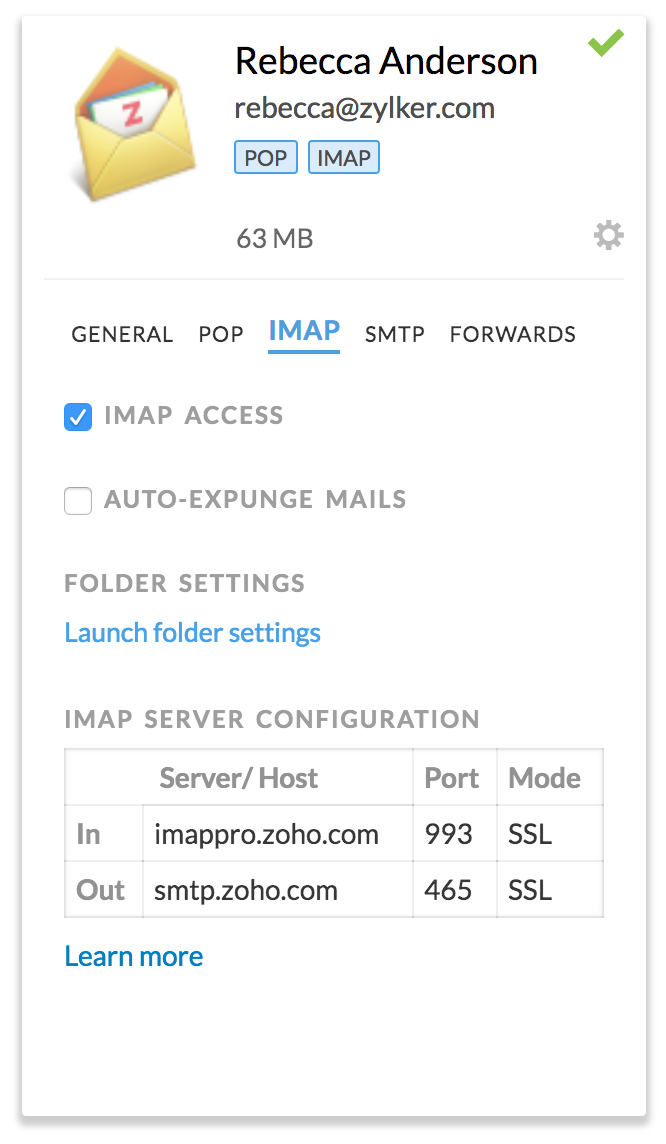
- Configure Auto-Expunge and Folder View Settings.
- Add the following details along with your account credentials when you add an IMAP integration in erxes:
Personal users with an email address, username@zoho.com:
IMAP PORT: 993
SMTP HOST: smtp.zoho.com
SMTP PORT: 465 (if with SSL) or 587 (if with TLS)
Organization users with a domain-based email address,you@yourdomain.com:
IMAP PORT: 993
SMTP HOST: smtp.zoho.com
SMTP PORT: 465 (if with SSL) or 587 (if with TLS)
Other IMAP server settings can be found here. If you are still unsure, please contact your email provider or check their guides.